 TD
TD
Key Takeaways
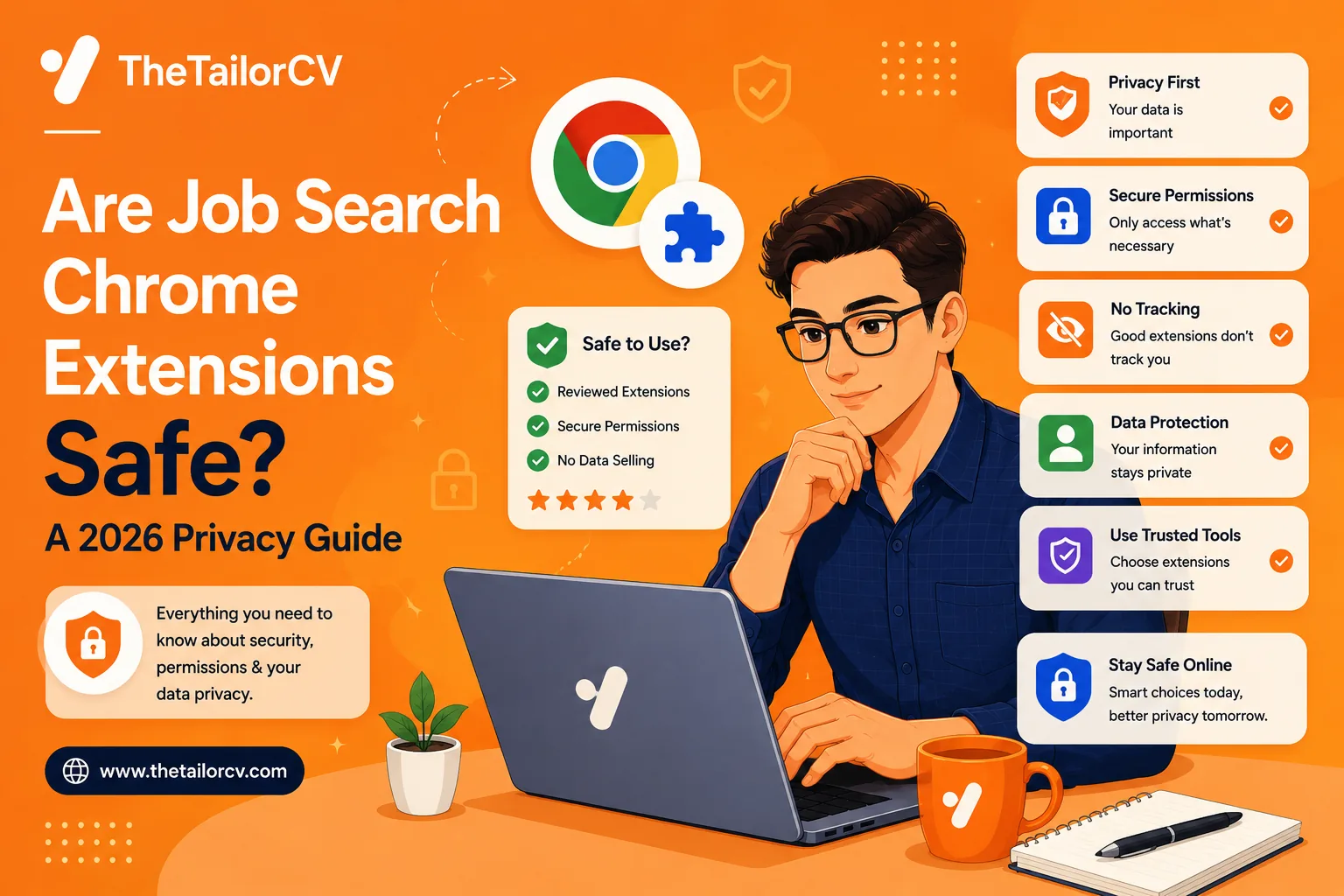
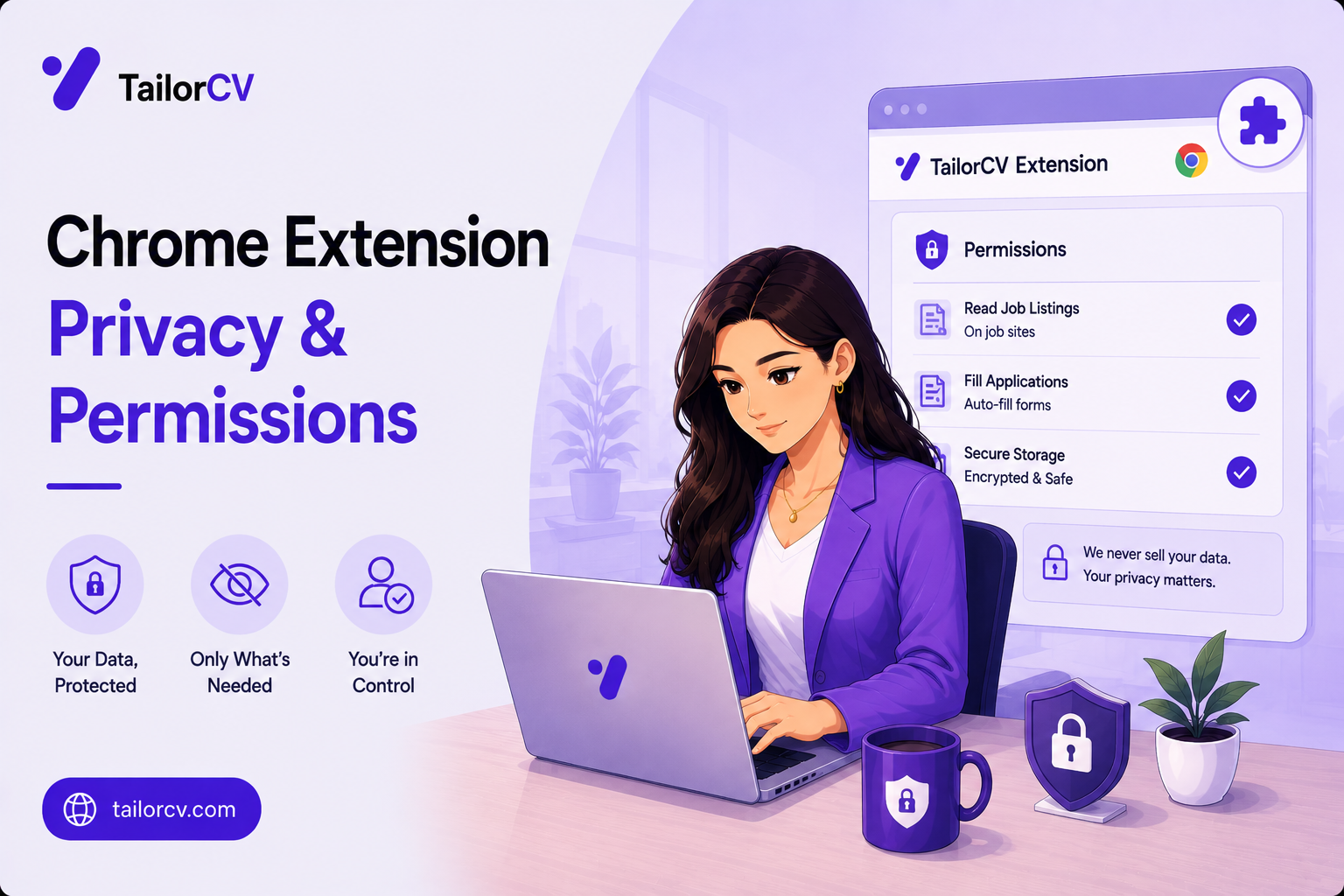
- The extension reads the job title, company and description from the job page you have open — nothing else on that page and nothing on other pages.
- It does not read your LinkedIn profile, connections, messages or feed, and it does not track your browsing.
- It requests five permissions — activeTab, cookies, downloads, scripting and storage — each for a specific, narrow purpose.
- The cookies permission reads only TailorCV's own CSRF cookie from thetailorcv.com, never cookies belonging to LinkedIn or any other site.
- Host permissions are limited to a named list of job boards, with optional broader access you grant only when you use the toolbar icon on another page.
Why permissions look alarming
Chrome shows extension permissions as a blunt list, and the list is worse than the reality for almost every legitimate extension.
"Read and change your data on linkedin.com" is the warning Chrome shows for the ability to run a script on LinkedIn job pages. It is technically accurate and practically misleading — the same warning appears whether an extension reads one heading or everything on the site.
The honest answer to "what does it actually do" is not in the permission list; it is in what the code reads and what it sends. So here it is, specifically.
The five permissions, one by one
activeTab. Used to identify the tab you are currently viewing when you click the toolbar icon, so the panel opens on the right page. It is not used to read or modify any other tab.
cookies. Used only to read TailorCV's own CSRF-protection cookie, set by thetailorcv.com, so the extension can make authenticated requests to your own account the same way the website does. It is not used to read or modify cookies belonging to LinkedIn, Indeed, or any other site.
downloads. Used to save the generated resume PDF to your computer through Chrome's download API when you click "Tailor & Download Resume". It is not used for any other file operation.
scripting. Used to inject the panel into the job page you are on so the interface appears in context rather than in a separate window.
storage. Used to hold your extension settings locally — your preferences, not your documents.
That is the complete list. There is no history permission, no tabs permission for reading all your open tabs, no webRequest interception.
What it reads from a job page
The job title. The company name. The description text.
That is the payload. Those three things are what get sent to TailorCV to generate a tailored resume, because those three things are what the tailoring is based on.
It does not read your profile. Your LinkedIn profile, your headline, your experience section as LinkedIn holds it — none of that is read. Your resume comes from the file you uploaded to your own account, not from scraping your profile.
It does not read your connections, messages or feed.
It does not read other tabs, other sites, or pages you visit while it is installed.
It does not run everywhere. The content script runs on a defined list of job board URLs — LinkedIn job pages, Indeed, Glassdoor, Naukri, Greenhouse, Lever, Workday, Ashby, ZipRecruiter, Monster, SimplyHired, Dice and Wellfound. On every other site, it does nothing at all unless you click the toolbar icon.
The optional broader permission
One thing worth understanding clearly, because it is the permission that sounds broadest.
The extension declares optional host permissions for all sites. Optional means exactly that — Chrome does not grant it at install time, and it is used only when you deliberately click the toolbar icon on a job page that is not one of the supported boards.
Why it exists. A great many jobs are advertised on company career pages, university boards and niche industry sites. Without this, the extension would be useless on all of them.
How to think about it. It is not access the extension has by default; it is access you grant, on a page you chose, at the moment you asked it to do something there.
How to evaluate any browser extension
The reasoning here applies well beyond this one, and it is worth having.
Read the justifications, not just the permission names. Chrome Web Store listings require a stated purpose for each permission. An extension that cannot explain why it needs something is telling you something.
Check the host permissions list. An extension that declares specific sites is meaningfully different from one that declares all sites at install time. Specific is better.
Look at whether broad access is optional. Optional host permissions mean Chrome asks you at the moment of use rather than granting at install.
Check what the extension is for. A calculator that wants to read every page you visit is a different proposition from a job-application tool that reads job pages.
Look at the publisher and the privacy policy. A named company with a real product and a policy that addresses the extension specifically is a better position than an anonymous listing.
Review your installed extensions periodically. Most people have several they no longer use, each with permissions still granted. Removing them is five minutes and genuinely worth doing.
Your data on the TailorCV side
The extension is one half; your account is the other.
Your base resume lives in your account, uploaded by you, used to generate everything.
Tailored resumes are saved to the My Resumes page against the job each was generated for, which is what makes the record useful later.
Your apply profile holds the standard answers you chose to store.
All of it is managed from the website, not the extension — you can view, download and remove things from your own account.
The privacy policy covers the extension specifically, in its own section, rather than burying it in general website terms. If you want the authoritative statement rather than this summary, that is where it is.
Questions worth asking about any AI resume tool
Beyond browser permissions, a few things worth knowing about anything that handles your resume.
What is sent, and when. For this extension, the job title, company and description go to TailorCV when you click to tailor. Your resume is already in your account; it is not re-uploaded from your browser each time.
Where the documents live. In your TailorCV account, viewable and removable from the website.
Whether it fabricates. This matters more than privacy for most people. A tool that invents skills to raise a match score creates an interview you cannot survive. The pipeline here is explicitly built not to claim skills your resume shows no evidence for.
Whether you can see the output before it goes anywhere. Nothing is submitted on your behalf. You download, you read, you send.
Whether it works without an account. It does not — an account is required, with a free tier included, because the generated documents are saved to it.
Whether the privacy policy addresses the extension specifically. It does, in its own section, rather than being folded into general website terms.
And whether you can leave. Remove the extension from Chrome; manage or delete account data from the website. Both are ordinary operations, not support tickets.
Verifying it yourself
You do not have to take any of this on trust, and here is how to check.
Read the Chrome Web Store listing's permission justifications. Each permission has a stated purpose that the developer had to submit and that Google reviews.
Open the extension's details page in Chrome. chrome://extensions shows exactly which sites it can access, and whether that access is on all sites or a specific list.
Watch the network. Open developer tools on a job page, click to tailor, and look at what request goes out. You will see the job text going to TailorCV and nothing else.
Check the site access setting. Chrome lets you restrict any extension to "on click" rather than automatic, which is a reasonable choice if you prefer explicit control.
Read the privacy policy's extension section, which addresses this specifically rather than generally.
And review it again in six months. Extensions update, and permissions can change between versions. A periodic look at chrome://extensions for everything you have installed is a good habit generally, not just here.
Mini checklist
- unchecked: Permission list reviewed on the Chrome Web Store page
- unchecked: Understood that the content script runs only on listed job boards
- unchecked: Understood the cookies permission covers only TailorCV's own cookie
- unchecked: Optional host permission understood as opt-in per use
- unchecked: TailorCV privacy policy read
- unchecked: Account password and sign-in method reviewed
- unchecked: Extension removed cleanly if you stop using it
Scenarios
Scenario 1: Chrome warns it can read data on linkedin.com
That warning covers the ability to run a script on LinkedIn job pages. What the script actually reads is the job title, company and description — not your profile, connections or messages.
Scenario 2: You are uncomfortable granting access to all sites
Do not. The all-sites permission is optional and Chrome will not grant it at install. The extension works fully on the supported job boards without it.
Scenario 3: You want to stop using it
Remove it from Chrome's extensions page like any other extension. Your TailorCV account and its documents are separate and are managed from the website.
Tip: Read the permission justifications on the Chrome Web Store listing rather than only the permission names. Chrome's warnings are deliberately broad, and the justification text is where an extension has to say what it actually does with each one.
Do's and Don'ts
Do
- Read the permission justifications, not just the names
- Understand which pages the content script runs on
- Treat the all-sites permission as opt-in
- Read the privacy policy
- Review your account sign-in security
- Remove the extension cleanly if you stop using it
Don't
- Assume a broad Chrome warning describes actual behaviour
- Grant all-sites access if you do not want it
- Assume the extension reads your LinkedIn profile
- Confuse extension settings storage with document storage
- Install extensions without reading what they justify
- Share your account credentials
Common Mistakes
- Reading Chrome's warning as behaviour. It is deliberately broad and covers the whole site either way.
- Assuming profile scraping. Your resume comes from the file you uploaded, not from LinkedIn.
- Granting optional permissions reflexively. It is opt-in per use and the extension works without it.
- Not reading the justifications. They are where an extension states its actual purpose per permission.
- Assuming it runs everywhere. The content script runs on a defined list of job boards only.
- Confusing local storage with document storage. Settings are local; documents are in your account.
Related Guides
Keep building on this with the related guides in this series:
- Tailoring Your Resume on LinkedIn
- The One-Click Apply Workflow
- Applying on Indeed Faster
- Getting an ATS Score on Any Job Posting
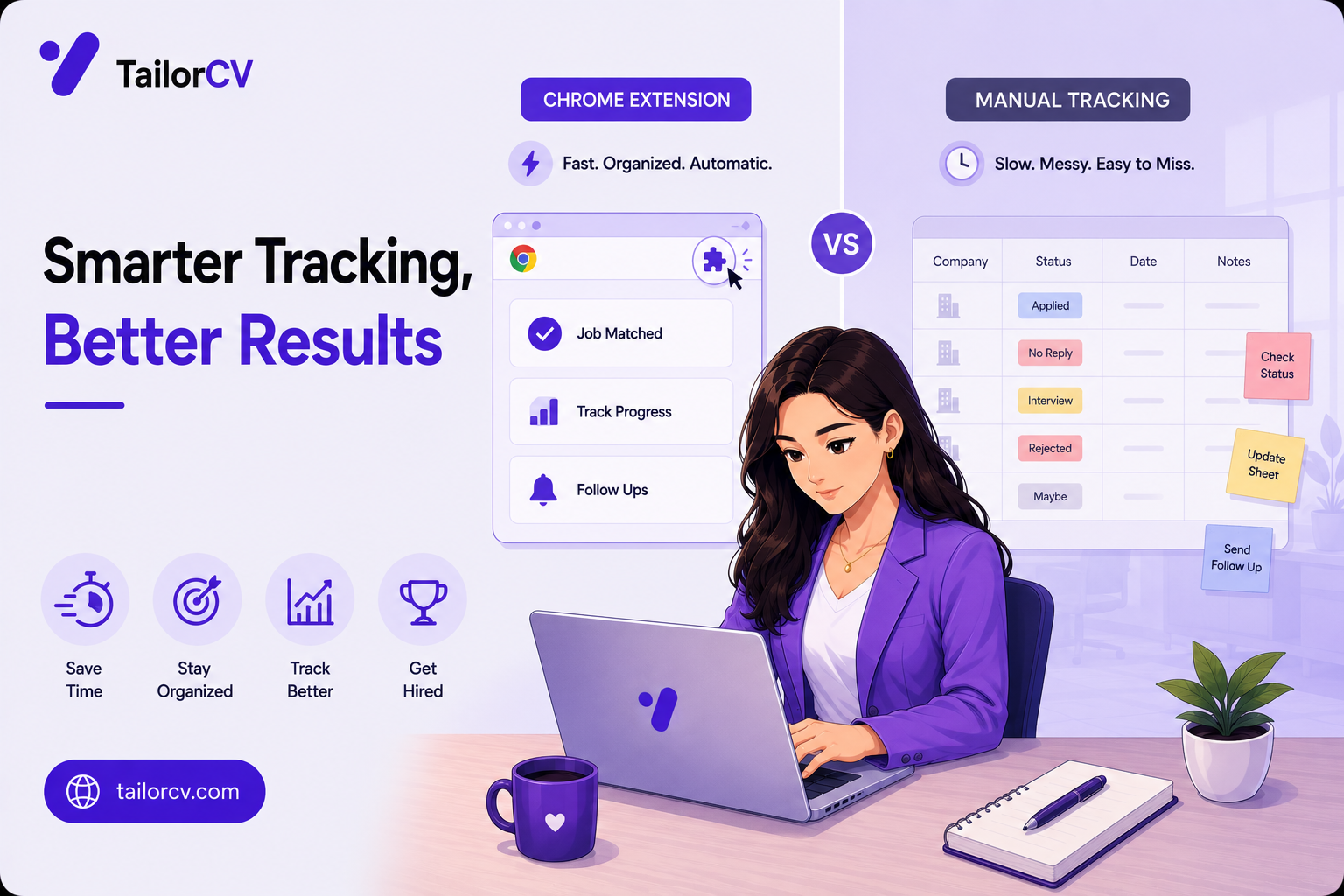
- Extension Versus Manual Job Tracking
You can also check your resume's ATS score for free, generate a tailored cover letter, or build a portfolio website in minutes.
Frequently Asked Questions
What does the extension actually read?
The job title, company name and description text from the job page you have open. Nothing else on that page, and nothing on other pages.
Does it read my LinkedIn profile?
No. Your resume comes from the file you uploaded to your TailorCV account. Your profile, connections, messages and feed are not read.
Why does it need the cookies permission?
Only to read TailorCV's own CSRF-protection cookie from thetailorcv.com so it can make authenticated requests to your account. It does not touch other sites' cookies.
Why does it ask for access to all sites?
That permission is optional and not granted at install. It is used only when you click the toolbar icon on a job page that is not one of the supported boards.
Does it track my browsing?
No. There is no history permission and no request interception, and the content script runs only on the listed job board pages.
What happens if I uninstall it?
Remove it from Chrome's extensions page. Your TailorCV account and saved documents are separate and managed from the website.
How should I evaluate any browser extension?
Read the per-permission justifications, prefer specific host permissions over all-sites, check whether broad access is optional, and confirm the permissions match what the tool is actually for.
Where is my data stored?
Your base resume, tailored resumes and apply profile live in your TailorCV account and are managed from the website. Extension storage holds settings only.
What is actually sent when I tailor a resume?
The job title, company and description from the page you have open. Your resume is already in your account and is not re-uploaded from the browser each time.
Does the tool invent skills to raise a match score?
No, and this is deliberate. Fabricated matches create interviews you cannot survive, so the pipeline is explicitly built not to claim skills your resume does not evidence.
How can I verify what the extension does?
Read the permission justifications on the Web Store listing, check chrome://extensions for its actual site access, and watch the network request in developer tools when you click to tailor.
Can I restrict when it runs?
Yes. Chrome lets you set any extension to run on click rather than automatically, which is a reasonable choice if you prefer explicit control.
Check your match before you install anything
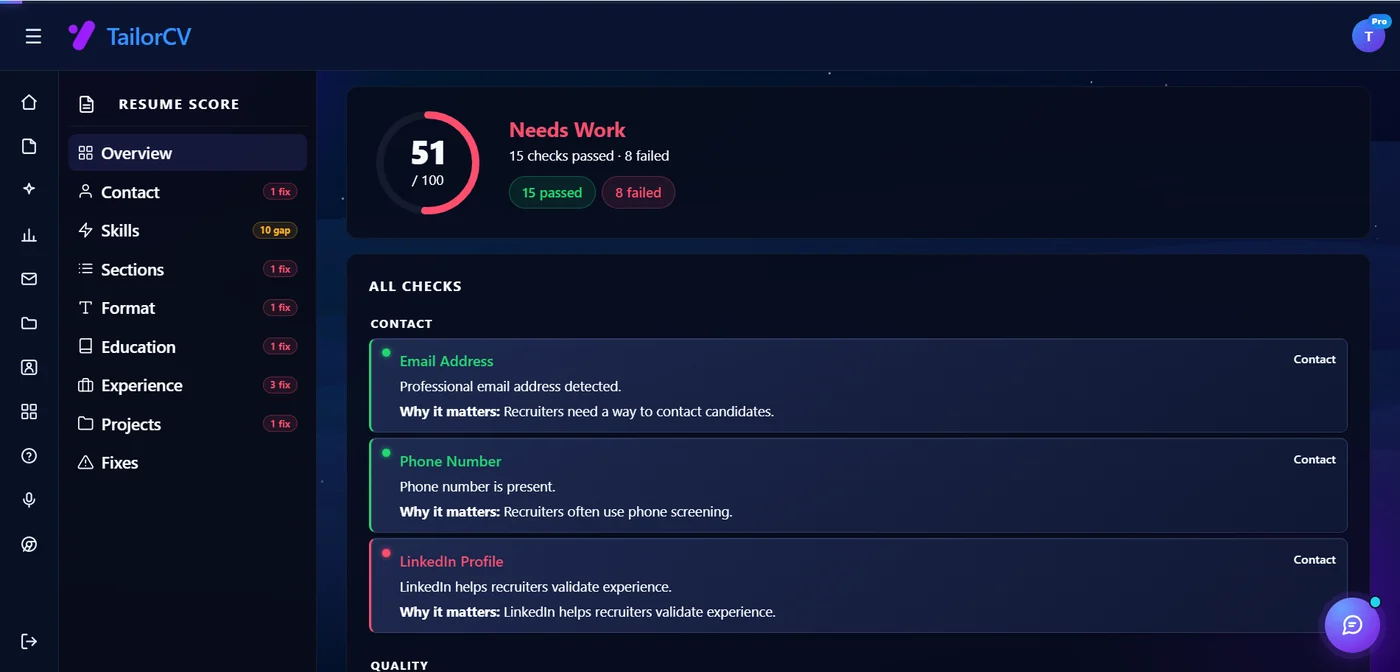
Same score the extension shows on a job page - run it here on any resume and job description.
Drop your resume here or choose a file
PDF only. Max 2 MB.
We never share your data or use it to train AI models.
Was this guide useful?
Be the first to rate it.