 TD
TD

Key Takeaways
- ATS systems can misread resumes due to poor formatting, causing qualified candidates to be overlooked.
- Using a two-column layout can jumble contact information and job titles, making it unreadable for ATS.
- Content placed in text boxes is often skipped entirely by ATS, leading to missing skills and details.
- Tables can confuse ATS parsing, resulting in disorganized and incorrect data extraction.
- To improve ATS compatibility, use a single-column layout and standard text formatting without text boxes or tables.
Your resume might be perfectly written - strong experience, relevant skills, quantified achievements - and still never reach a human recruiter. The reason is almost always formatting.
ATS (Applicant Tracking Systems) parse your resume before any person reads it. When your formatting confuses the parser, your content gets scrambled, misread, or lost entirely. A two-column layout with a beautiful design can register as gibberish in an ATS database.
Before you apply to your next role, check your resume against the TailorCV ATS score checker and start with a properly structured ATS-friendly resume template. To understand the full ATS system, read the ATS score guide.
Why Resume Formatting Breaks ATS Systems
ATS software reads your resume the same way a program reads a data file - it looks for recognizable patterns and structure. When your formatting deviates from what the parser expects, several things happen:
What an ATS score report actually shows you
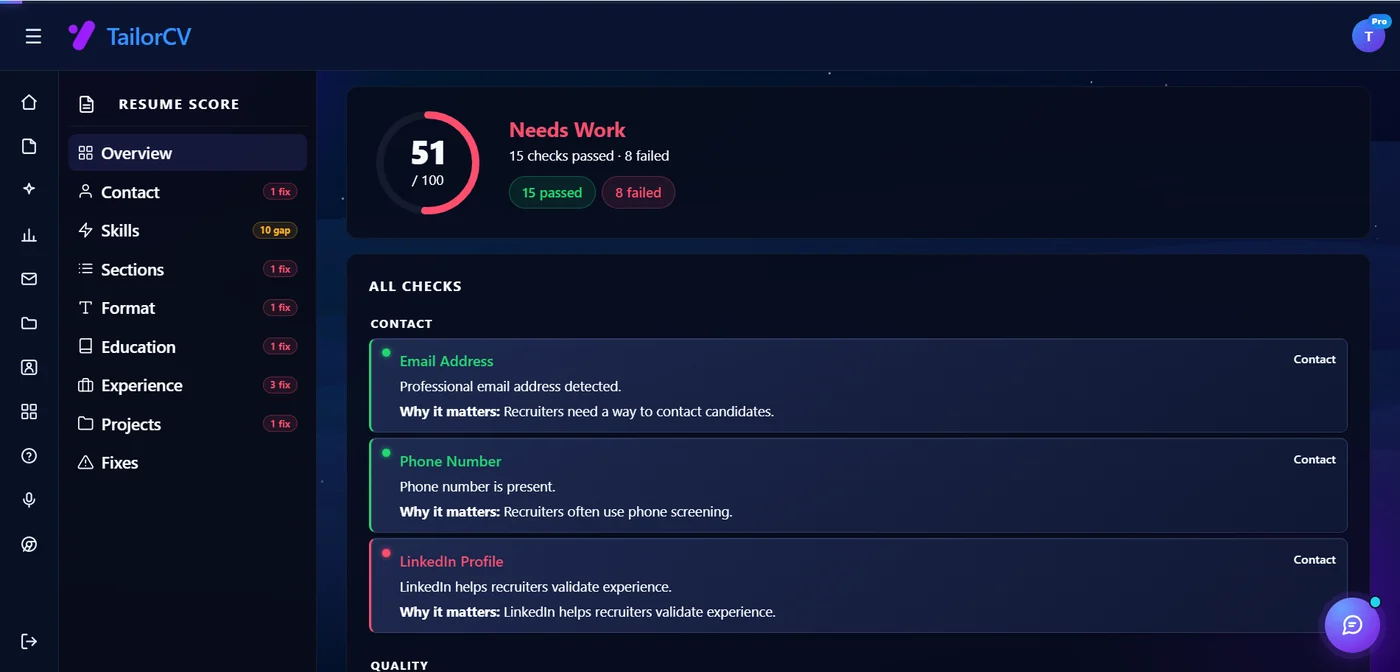
Passed and failed checks are listed individually, so you can see exactly which part of the resume is costing you points.
- Text gets extracted in the wrong order
- Sections get merged or lost
- Contact details end up in the wrong fields
- Skills listed in a graphic never appear in the candidate profile
- Your keyword match drops because the parser could not read your content
The result: a well-qualified candidate gets a low ATS score because the software could not extract their information correctly.
Here are the 10 most common ATS resume formatting mistakes - and exactly how to fix them.
Mistake 1: Using a Two-Column Layout
Two-column resume templates are the most common ATS killer. They look professional and polished, but most ATS systems read left-to-right across columns rather than down each column separately. This means your contact info, job titles, and dates get jumbled together in a single line of scrambled text.
What happens: Your work experience mixes with your skills section. Your recruiter sees "Software Engineer Python AWS 2019-2022 Led backend team" as a single merged field.
The fix: Use a single-column, top-to-bottom layout. Every section flows straight down the page. The ATS can follow this without confusion.
Mistake 2: Putting Content in Text Boxes
Text boxes are popular in resume design because they create clean visual blocks. But most ATS systems skip text box content entirely during parsing. If your skills, certifications, or contact details live inside a text box, they may simply not exist in the ATS database.
What happens: You apply with your full skill set visible to your eyes but invisible to the ATS.
The fix: Remove all text boxes. Replace with standard paragraph text or bullet points directly in the document body.
Mistake 3: Using Tables to Organize Information
Tables look structured on paper. In an ATS, they cause parsing chaos. The system reads table cells in an unexpected order or cannot read them at all, depending on the parser. A skills table with two columns means your skills end up in two separate parsed fields that do not connect.
What happens: "Python | 5 years | SQL | 4 years | AWS | 3 years" gets parsed as a single string or gets dropped.
The fix: Use a simple bulleted list for skills. Separate items with commas or line breaks. No tables in your skills section.
For guidance on the right skills section structure, see the resume keywords guide.
Mistake 4: Placing Contact Information in Headers or Footers
Many resume templates place the candidate's name and contact information in the document header (using the header section in Word or Google Docs). This feels natural visually, but many ATS systems do not process header and footer content.
What happens: The ATS extracts your resume but cannot find your name, email, or phone number. Your application goes into the database without contact information.
The fix: Place your name, email, phone number, city, and LinkedIn URL in the main body of the document - not in a Word or Google Docs header or footer field.
Mistake 5: Using Graphics, Icons, and Skill Charts
Progress bars showing "Python: 90%", star ratings, skill radar charts, icons next to section headers - these visual elements are invisible to ATS systems. The parser cannot convert graphics into readable text.
What happens: Your skill proficiency data and visual highlights disappear entirely. The ATS never knows you listed them.
The fix: Use plain text for everything. Replace "Python ●●●●○" with "Python (Advanced)" or simply "Python" in your skills list. Replace skill bars with a written description in your experience bullets.
Mistake 6: Using Non-Standard or Decorative Fonts
Custom fonts - thin geometric fonts, handwritten styles, highly stylized typefaces - may not be included in the font set the ATS uses to render your document. When the font is unavailable, the parser may struggle to read the text or render it as symbols.
What happens: Your text renders as garbled characters or fails to parse correctly.
The fix: Use standard, system-safe fonts. Arial, Calibri, Garamond, Georgia, Helvetica, and Times New Roman all parse reliably. Keep body text at 10-12pt.
Mistake 7: Using Creative Section Headings
ATS systems recognize section headings by matching them against a list of expected terms. When you use creative headings like "Where I've Made an Impact," "My Toolkit," or "Things I've Built," the parser cannot identify which section it is reading.
What happens: Your work experience may get filed as an unknown field. Your skills section might not register as skills at all.
The fix: Use standard, conventional headings:
- Work Experience (not "Career Highlights" or "My Journey")
- Skills (not "Competencies" or "What I Know")
- education (not "Academic Background")
- certifications (not "Credentials")
For the complete list of recommended sections and order, see how to make your resume ATS-friendly.
Mistake 8: Submitting a Scanned or Image-Based PDF
Some candidates scan a printed resume and upload the PDF. Others export their resume as an image and wrap it in a PDF. Both methods produce a document where the "text" is actually a picture - and ATS systems cannot read pictures.
What happens: The ATS parses your PDF and finds zero text. Your entire resume is blank in the system.
The fix: Always create your PDF by exporting a text-based document (Word, Google Docs, LaTeX). Test by opening the PDF, selecting all (Ctrl+A), and copying the text. If you can copy it, the ATS can read it.
Mistake 9: Inconsistent Date Formatting
ATS systems extract employment dates to calculate years of experience and validate your career timeline. When dates are inconsistently formatted - "Jan 2020," "01/2020," "2020," and "January 2020" used interchangeably - the parser may misread your timeline.
What happens: The ATS calculates incorrect experience length. Your eight years of experience might register as four years because the parser could not reconcile the formats.
The fix: Choose one date format and use it throughout. "MM/YYYY" (01/2020) or "Month YYYY" (January 2020) are both widely supported. Be consistent across every role.
Mistake 10: Resume File Name Issues
This is easy to overlook, but some ATS systems log the file name of your uploaded resume. Submitting a file named "resume_final_UPDATED_v3_REAL_FINAL.pdf" looks careless and unprofessional when recruiters see it in their system.
What happens: Minor issue, but creates a negative first impression when the recruiter pulls up your file.
The fix: Name your file clearly: "FirstName_LastName_Resume.pdf" or "FirstName_LastName_JobTitle_Resume.pdf." Clean, professional, and easy to find.
How to Test Your Resume for Formatting Issues
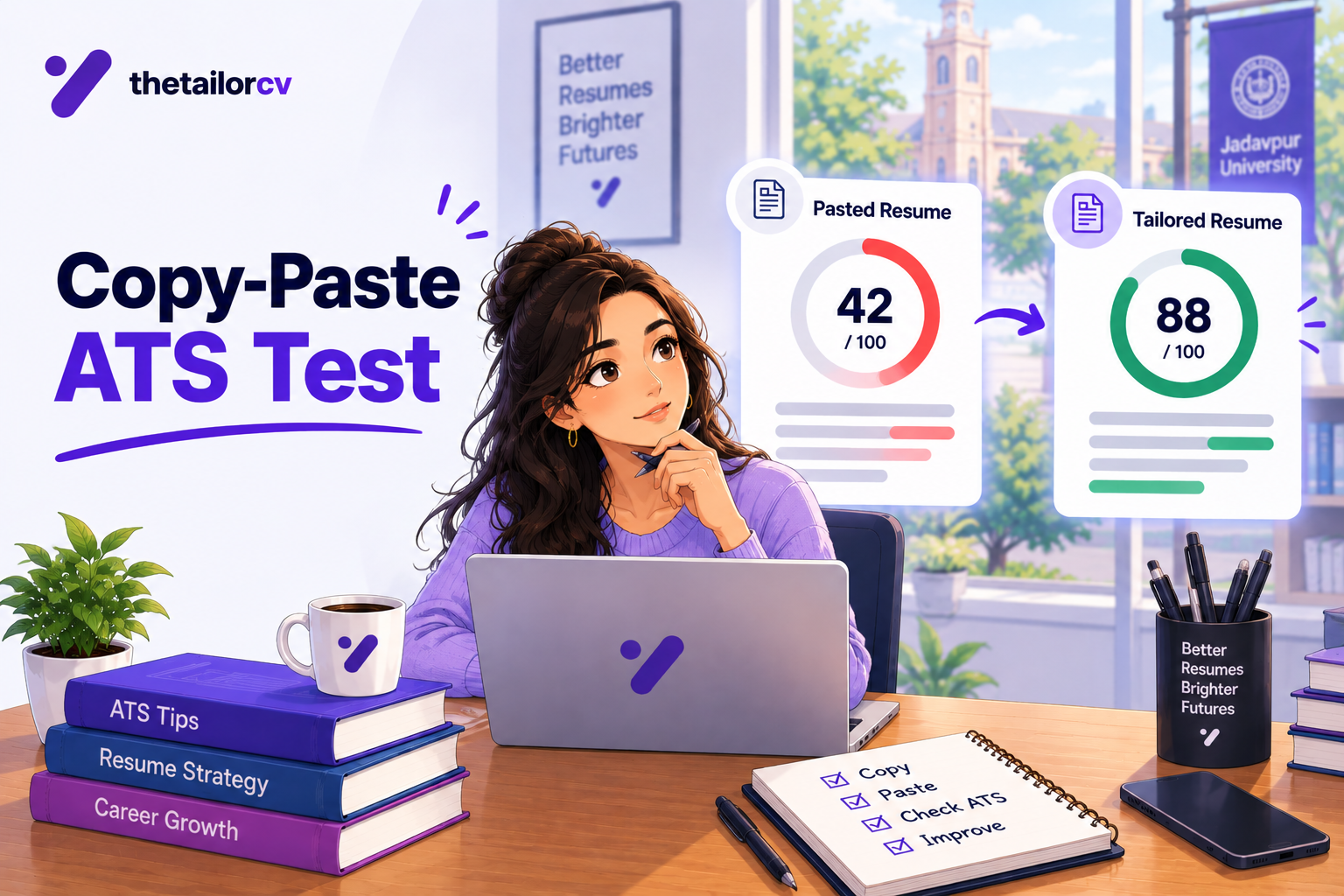
The Copy-Paste Test
Open your resume PDF, select all content (Ctrl+A), copy it, and paste it into a plain text editor like Notepad. Read through the result:
- Is your contact information present?
- Is your work experience in the right order?
- Are your skills listed correctly?
- Does the text make sense from top to bottom?
If the pasted text is out of order, garbled, or missing sections, the ATS will have the same problem.
The ATS Score Check
Run your resume through the TailorCV ATS score checker against your target job description. It checks formatting compatibility and keyword match at the same time - and shows you exactly what needs to be fixed.
ATS Formatting Quick Reference
| Element | ATS-Safe | ATS-Dangerous |
|---|---|---|
| Layout | Single-column | Two-column |
| Tables | Avoid entirely | Skill tables, info tables |
| Text boxes | Never use | Common in design templates |
| Graphics | None | Icons, charts, progress bars |
| Fonts | Arial, Calibri, Georgia | Custom or decorative fonts |
| Section headings | Work Experience, Skills | "My Journey," "My Toolkit" |
| Contact placement | Document body | Word header or footer |
| File type | Text-based PDF, DOCX | Scanned or image-based PDF |
| Date format | Consistent MM/YYYY | Mixed formats throughout |
Related Guides
- ATS Score Guide 2026
- How to Make Your Resume ATS-Friendly in 2026
- ATS Keyword Mistakes That Are Costing You Interviews
- Hidden ATS Mistakes Killing Your Job Search in 2026
- Resume Keywords Guide 2026
- How to Improve Your ATS Score
- Chronological vs Functional Resume
- How to Tailor Your Resume for Every Job Application
- What is an ATS Score and Why Does It Decide Your Job Application Before Any Human Reads It
- ATS Mistakes Tech Professionals Make in 2026 (Software Engineers, Data Scientists and Developers Guide)
- How to List Certifications on a Resume in 2026 - With Examples
- How to List Education on a Resume in 2026 - Complete Guide with Examples
- What Not to Put on a Resume in 2026 - 25 Things to Remove Immediately
- ATS Mistakes Experienced Professionals Make (And Why Your Resume Stops Working After 5+ Years)
- Cover Letter Guide 2026 - How to Write a Cover Letter That Gets Read
- How to Explain Resume Gaps in 2026 - Honest Strategies That Work
- Attorney & Lawyer Resume Guide 2026
Make This Practical
Do not guess whether the resume is ready. Upload it to the free ATS score checker, compare the result with the ATS Score Guide, and fix formatting issues using ATS Resume Formatting Mistakes and ATS Resume Parser Friendly Format.
After the technical cleanup, improve relevance. Use Resume Matching With Job Description, strengthen keyword coverage with the Resume Keywords Guide, and avoid overdoing it by checking ATS Keyword Mistakes. If the layout itself is weak, rebuild with an ATS-friendly resume template.
Conclusion
ATS formatting mistakes are the most preventable cause of rejection in the modern hiring process. You do not need a better resume - you need the same content in a format the ATS can read.
Fix the layout first (single-column, no tables, no text boxes), then fix your section headings, then check your contact information placement. Run your resume through the TailorCV ATS score checker to catch anything you missed, and start fresh with an ATS-friendly resume template if your current template is the problem.
Once your formatting is clean, focus on ATS keyword optimization and tailoring your resume for each job. Formatting is the foundation - everything else builds on top of it.
Frequently Asked Questions
What is an ATS and how does it affect my resume?
An ATS, or Applicant Tracking System, is software used by employers to filter job applications. It scans resumes for keywords and specific formatting before a human recruiter ever sees them. If your resume's formatting is not ATS-friendly, it could lead to important information being misread or lost entirely, resulting in a low ATS score.
What are the most common ATS formatting mistakes?
Common ATS formatting mistakes include using two-column layouts, graphics, and unusual fonts. These elements can confuse the ATS, causing it to misinterpret your resume. To avoid these pitfalls, consider using an ATS resume parser friendly format that adheres to standard design principles.
How can I check if my resume is ATS-friendly?
You can check if your resume is ATS-friendly by using a free ATS score checker. This tool evaluates your resume's formatting and keyword usage, helping you identify areas for improvement before you submit your application.
What should I look for in an ATS-friendly resume template?
When choosing an ATS-friendly resume template, look for a simple layout with clear headings and standard fonts. Avoid templates with complex designs or graphics that may confuse the ATS. For guidance on selecting the right template, refer to our how to choose resume template guide.
How do I optimize my resume for ATS keywords?
To optimize your resume for ATS keywords, analyze the job description and identify relevant terms and phrases. Use these keywords naturally throughout your resume to improve your chances of passing the ATS screening. For a practical approach, download our resume keyword map template to help align your resume with job requirements.
Does your formatting survive the parser?
Upload your resume and see what an ATS actually reads back.
Drop your resume here or choose a file
PDF only. Max 2 MB.
We never share your data or use it to train AI models.
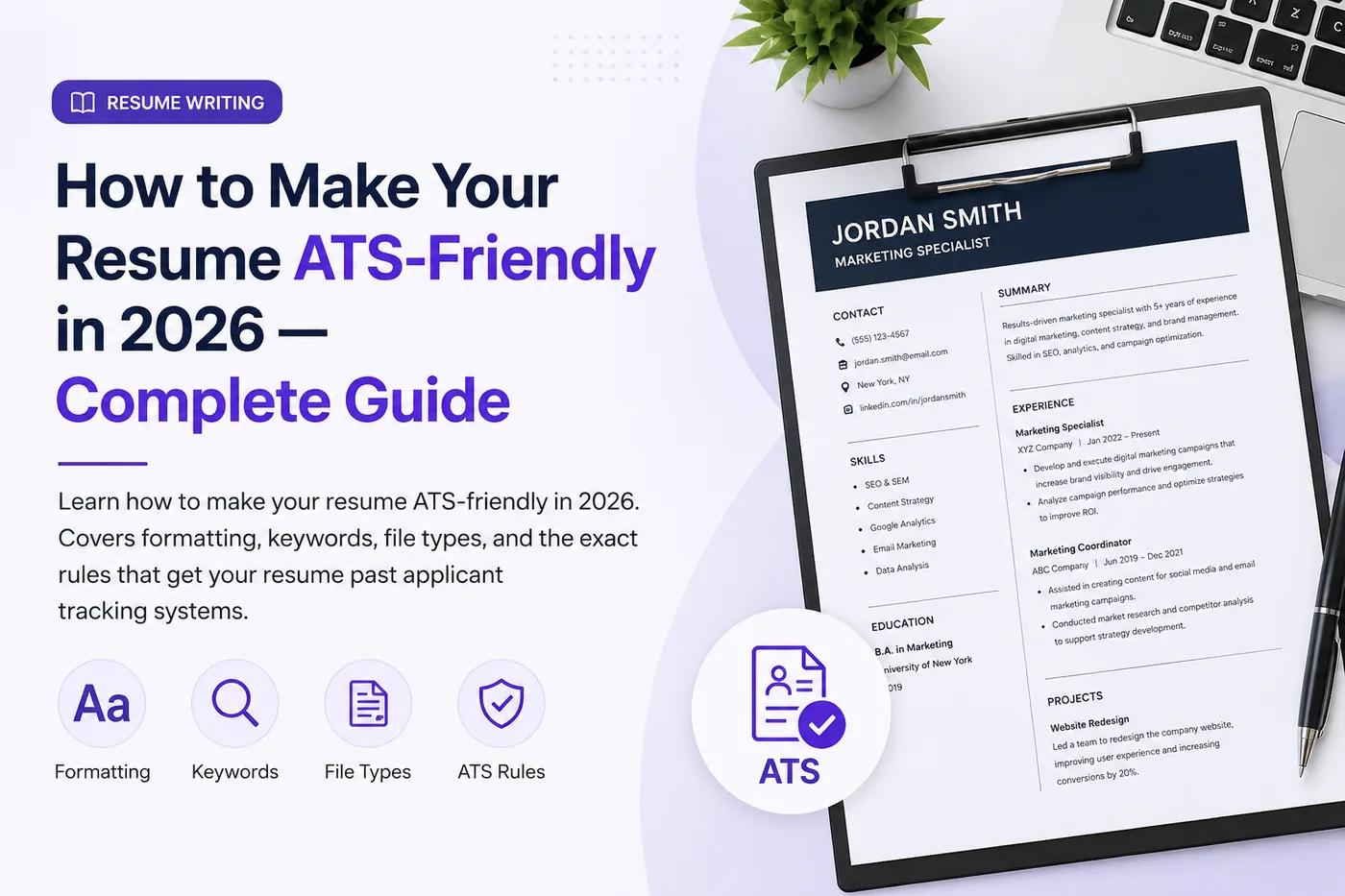
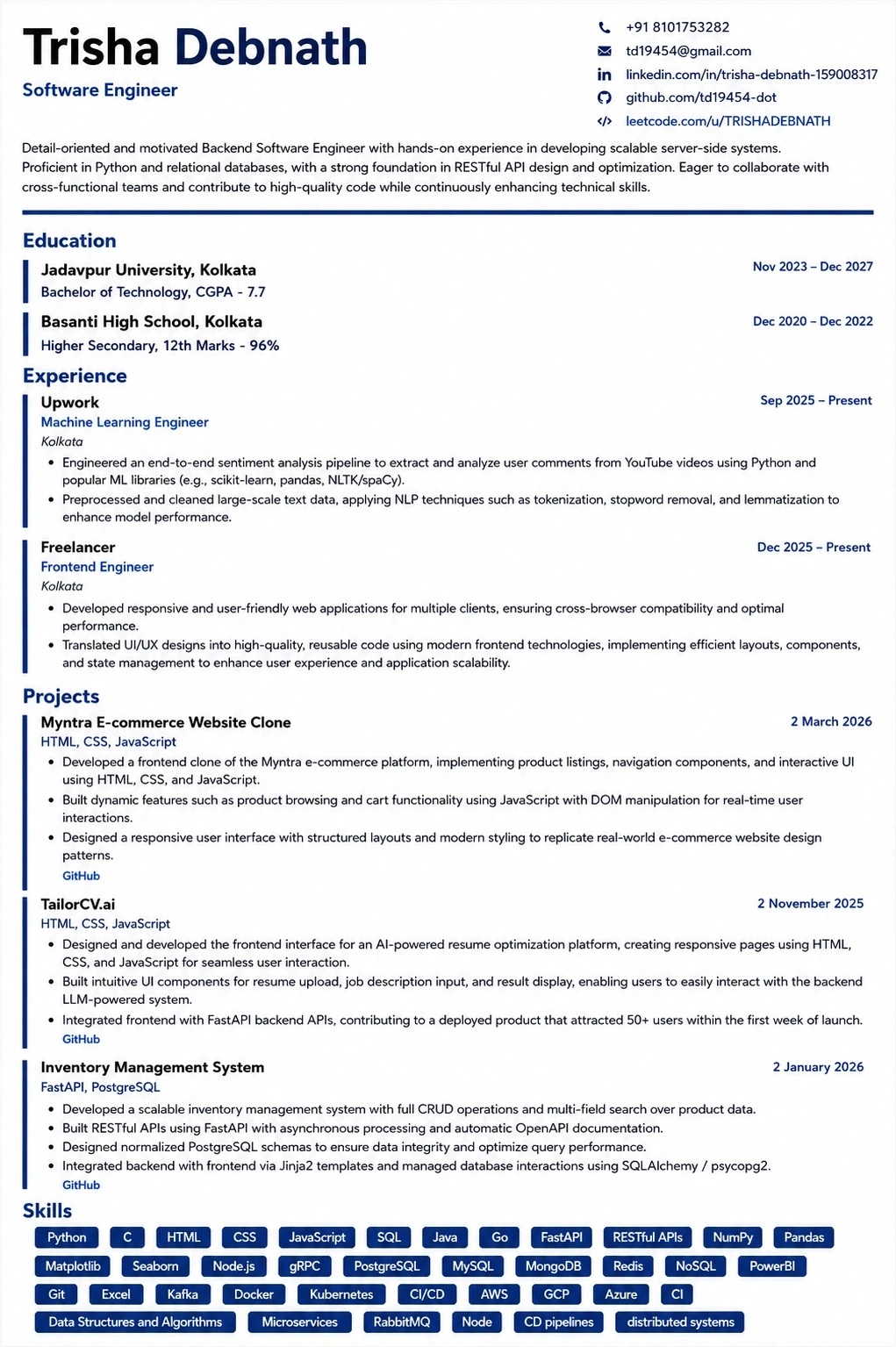
A layout that parses cleanly
Single column, standard headings, no text boxes — the formatting rules in this guide, already applied.
Was this guide useful?
Be the first to rate it.