 SS
SS
Key Takeaways
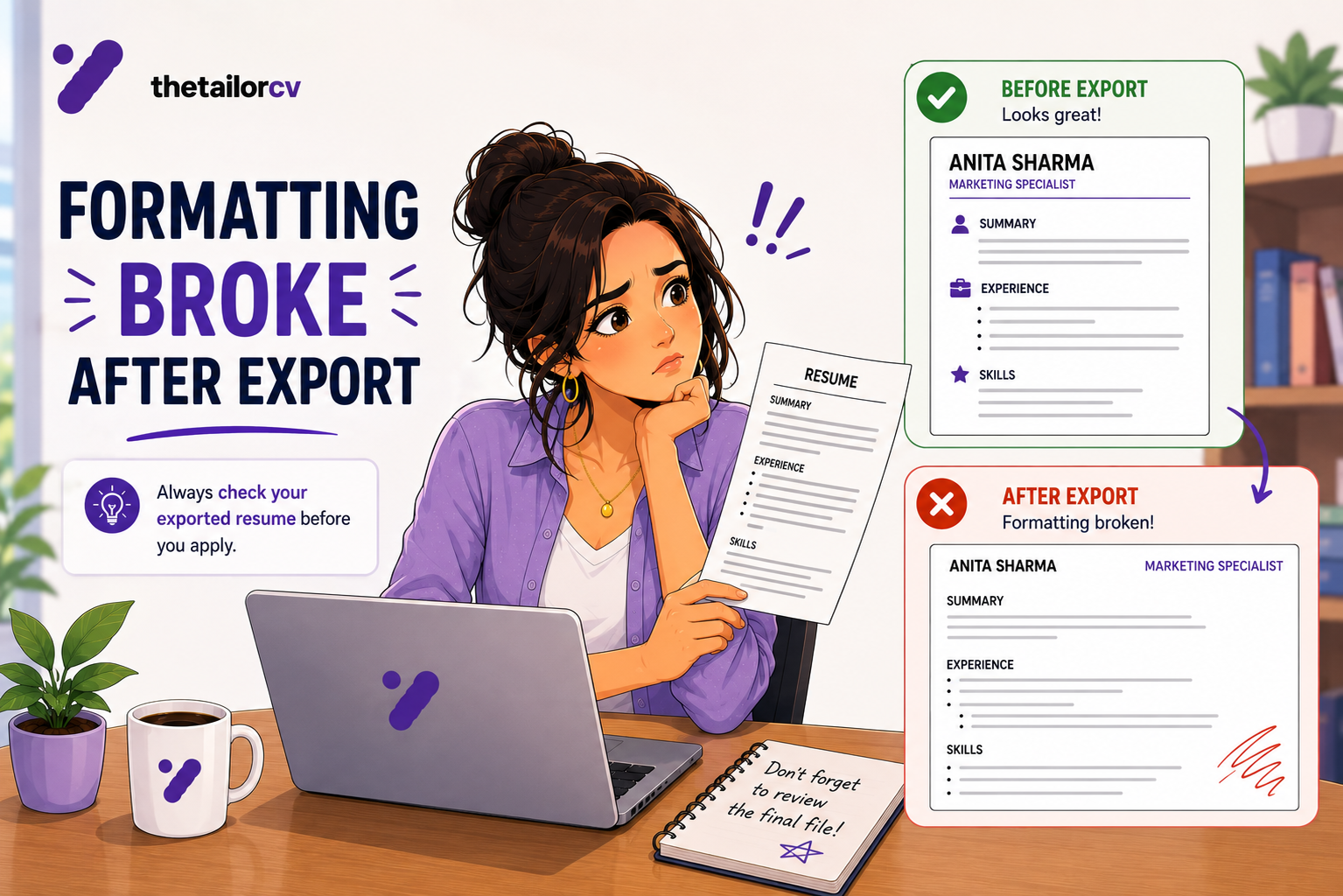
- The file you send is the only version that matters. What you see in the editor is not necessarily what arrives.
- Export failures are usually invisible to you and obvious to the parser.
- The single most common cause: exporting from Google Docs or Word with fonts or spacing the target renderer handles differently.
- Always open the exported file yourself, and copy-paste its text somewhere plain to see what is actually extractable.
- Links, headers and footers are the first things to die in translation.
Your resume looks right in the editor, you export it, and something is off — or worse, nothing looks off but the parser reads it wrong. Here is what actually breaks and how to check.
Why Export Changes Things
When you export from a word processor to PDF, several things get resolved that were previously flexible: fonts get embedded or substituted, layout objects get flattened, and text gets assigned reading-order coordinates.
That last one matters most. In your editor, a two-column layout is two columns. In the exported PDF, it is a set of text runs with positions — and the parser reconstructs reading order from those positions. Sometimes it gets it wrong, interleaving your skills into your job history. See ATS formatting mistakes for the structural side.
The Six Things That Break
1. Fonts substitute. If your font is not embedded and the reader does not have it, something else is used. Spacing shifts, lines rewrap, and a one-page resume becomes one and a bit. Use common fonts — Calibri, Arial, Helvetica, Georgia, Times New Roman — or confirm embedding.
2. Bullet characters become symbols. Custom bullets sometimes export as ?, `` or a box glyph. Use standard bullets from your editor's list function rather than typed characters or wingdings.
3. Hyperlinks stop working. LinkedIn and portfolio links frequently survive as blue text but lose the underlying href, especially exporting from Google Docs to PDF via some paths. Test every link in the exported file by clicking it.
4. Headers and footers get treated differently. Content in header/footer regions may be positioned outside the main text flow, and some parsers skip those regions entirely. If your name and phone number live in a header, they may never be extracted. Put contact details in the body.
5. Spacing collapses or expands. Manual spacing built with tabs, spaces and empty paragraphs shifts unpredictably. Use paragraph spacing settings rather than blank lines.
6. Tables and text boxes flatten badly. Content inside them may lose its association with a label, or vanish. Avoid both — the reasons are in parser-friendly formatting.
The Copy-Paste Test
This is the fastest way to see what a parser sees, and it takes thirty seconds.
- Open your exported PDF.
- Select all the text (
Ctrl+A/Cmd+A) and copy it. - Paste it into a plain text editor — Notepad, TextEdit in plain mode, or any code editor.
Now read it. This is approximately what an ATS extracts.
What to look for:
- Is the reading order correct, or are sections interleaved?
- Did every job title, company and date come through?
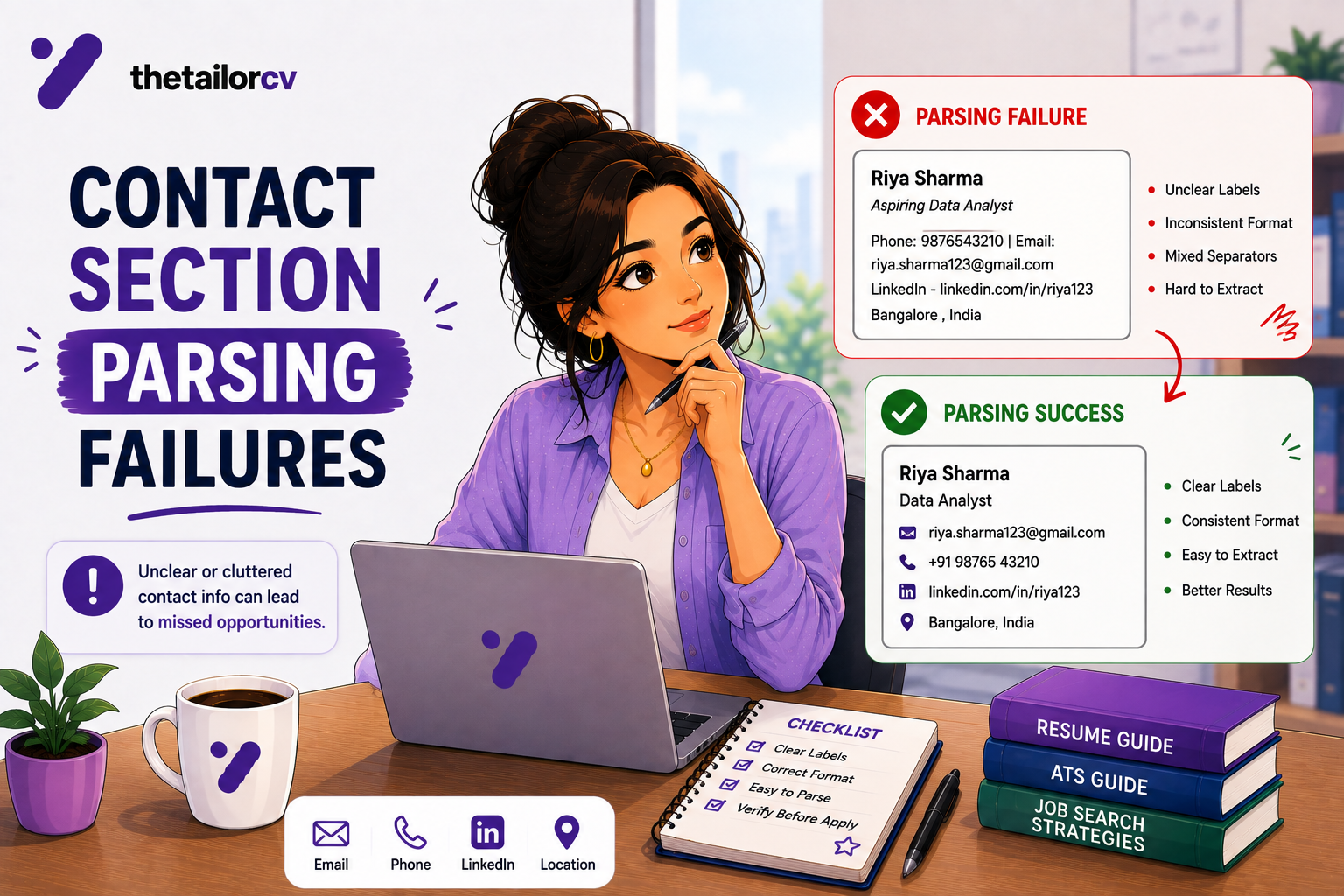
- Is your contact information present?
- Are bullets readable, or replaced with odd characters?
- Did your skills section survive as text?
If the pasted text is scrambled, your resume is scrambled to every system that reads it — regardless of how it looks on screen.
Export Settings That Matter
From Word: use File → Save As → PDF (not "Print to PDF", which is more likely to rasterise). Check "Best for electronic distribution" if offered.
From Google Docs: File → Download → PDF Document. Then verify links, because this path is a common place for them to break.
From Pages: File → Export To → PDF. Never send the .pages file itself — most systems cannot open it.
From Canva or design tools: be careful. These often produce text-as-graphics or heavy layout objects. If you must use one, run the copy-paste test — if nothing selects, the file is an image and no parser can read a word of it.
Never send: a scanned or photographed resume, a screenshot, or a file exported as image-only PDF. These are unreadable to every ATS.
The Version Control Problem
A quieter failure: you edit the resume, export, and send the previous export.
This happens constantly, especially when tailoring per application. The symptoms look like a resume problem — you fixed the missing keywords, re-scanned, and the gaps are still there.
Practical habits:
- Name files with the target:
firstname-lastname-resume-companyname.pdf - Delete old exports rather than accumulating
resume_final_v2_real.pdf - Re-open the exported file before attaching it, every time
- If you scan after editing, scan the exported file, not the source document
See what to expect when you re-scan for how this shows up as a confusing score.
PDF or DOCX?
PDF by default. It preserves layout and is universally accepted.
DOCX when the posting asks for it. Some older systems parse .docx more reliably, and a few explicitly request it. Follow the instruction — it is occasionally a deliberate test.
Either way, the same rules apply: single column, standard fonts, no text boxes, contact details in the body. Our file format guide covers the details.
A Pre-Send Checklist
Thirty seconds before you attach anything:
- Open the exported file. Not the source — the export.
- Copy-paste the text into a plain editor. Check order and completeness.
- Click every link. Confirm they resolve.
- Check page count. Did it grow from one to two?
- Check the filename. Is it the version you just edited?
- Confirm contact details are in the body, not a header.
Frequently Asked Questions
Why does my PDF look different from my document? Font substitution and layout resolution. Use common fonts and avoid manual spacing.
Does exporting to PDF hurt ATS parsing? No — PDF is fine and usually preferred. Image-based PDFs are the problem, not PDFs generally.
My links look fine but do not click. Why? The href was lost in export. Re-insert links in the exported file, or export by a different route and re-test.
Can I send a Canva resume? Only if the copy-paste test returns real text. Many Canva exports are effectively images.
Should I flatten my PDF? No. Flattening can convert text to graphics, which makes it unreadable to parsers.
Test the File You Actually Send
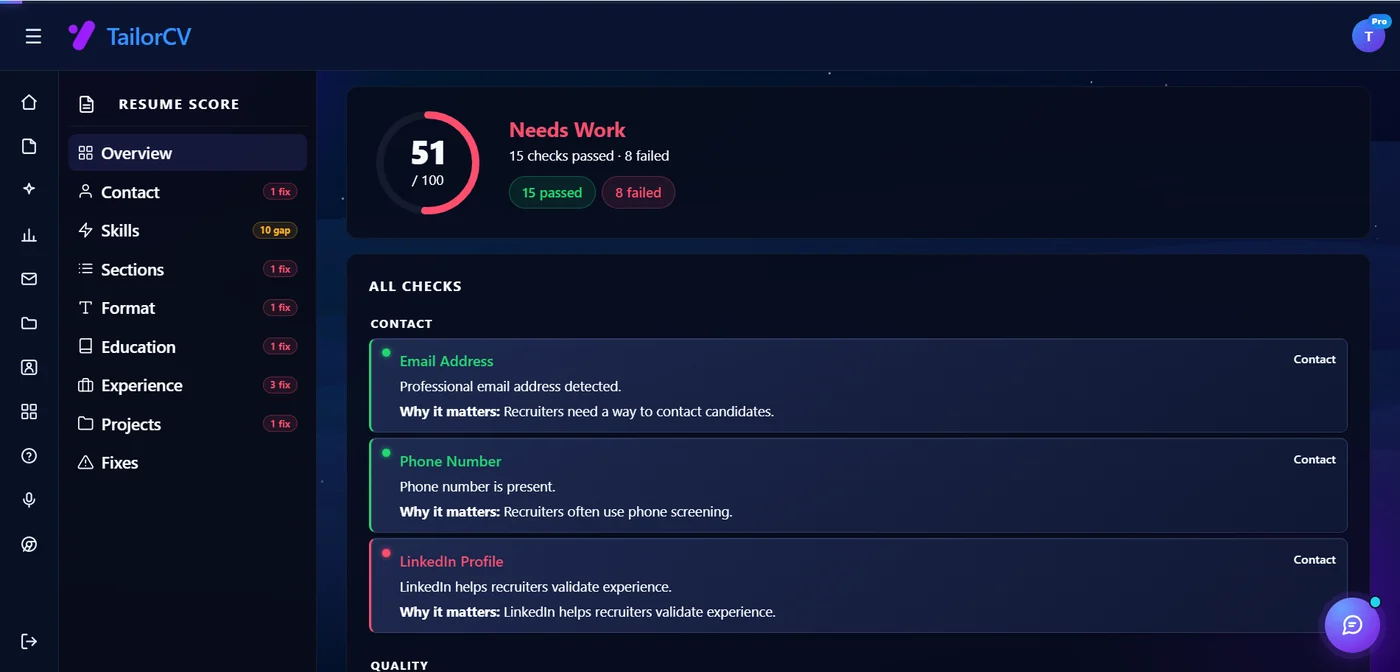
The resume that matters is the exported one, and the fastest way to see it the way a system does is to run it through a parser.
Upload your exported file and check the extraction — before looking at any score, look at whether your titles, dates, skills and contact details came out correctly. If they did not, you have found a problem affecting every application you have sent.
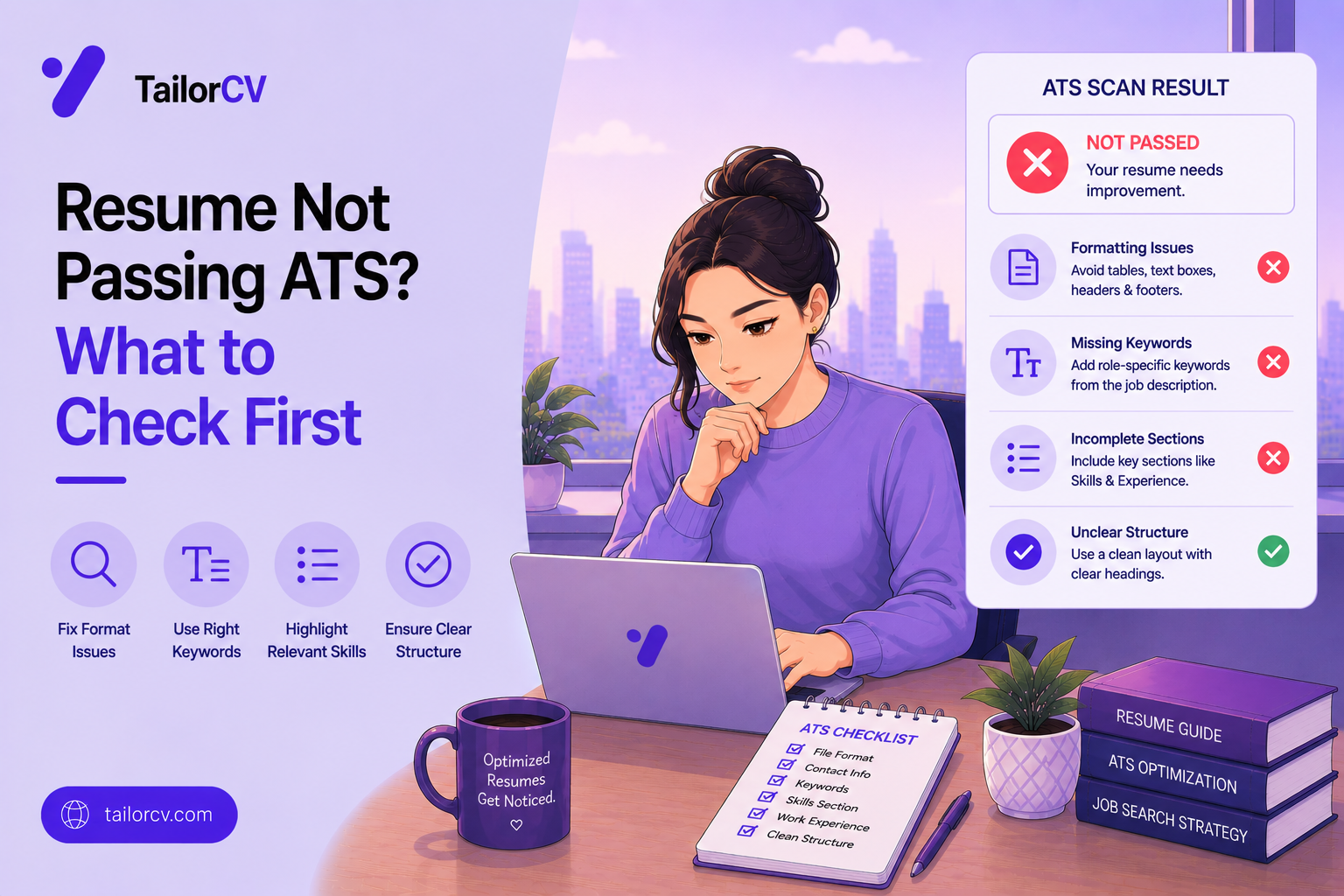
Free, about a minute. See also resume not passing the ATS and ATS formatting mistakes.
Does your formatting survive the parser?
Upload your resume and see what an ATS actually reads back.
Drop your resume here or choose a file
PDF only. Max 2 MB.
We never share your data or use it to train AI models.
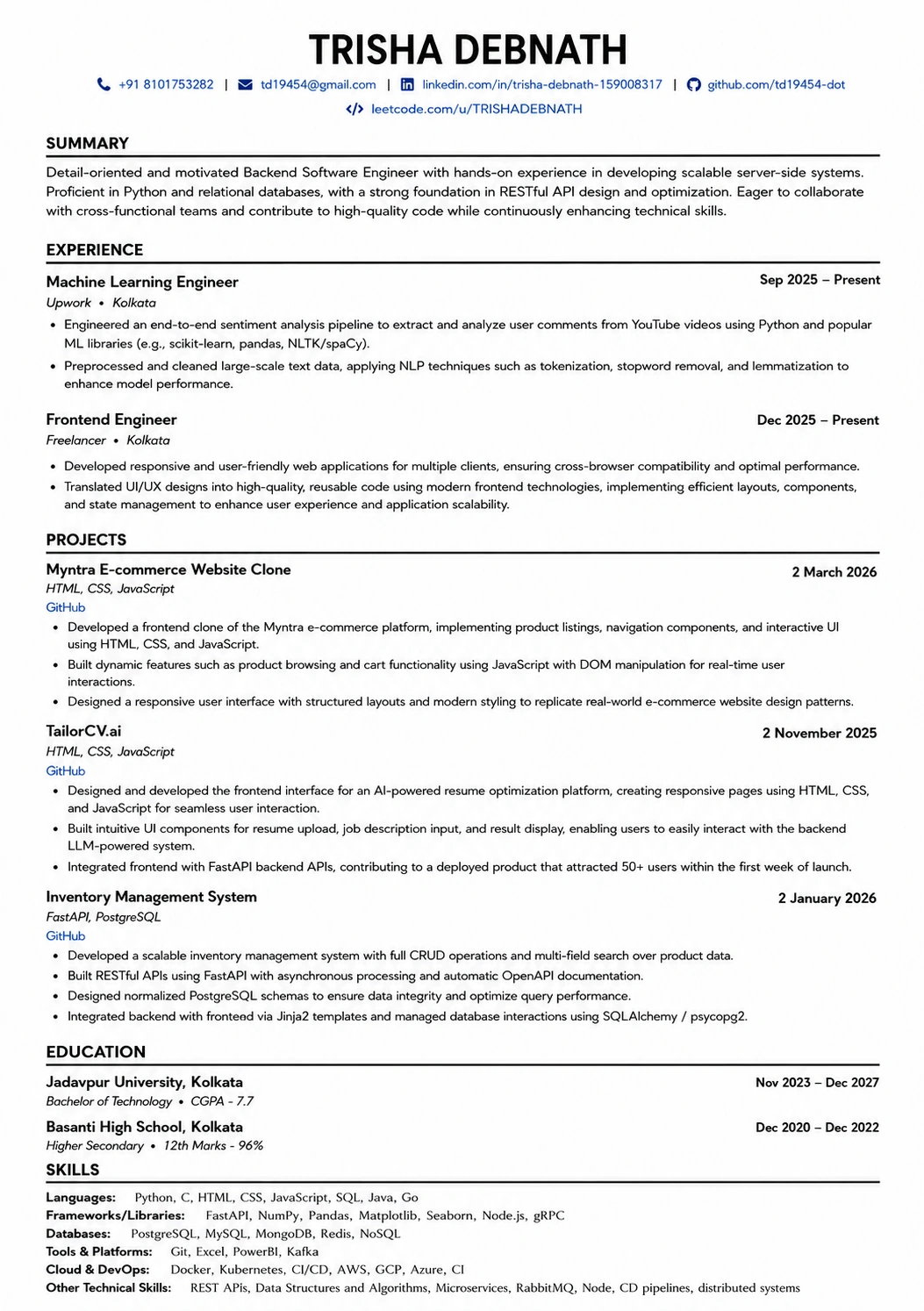
A layout that parses cleanly
Single column, standard headings, no text boxes — the formatting rules in this guide, already applied.
Was this guide useful?
Be the first to rate it.